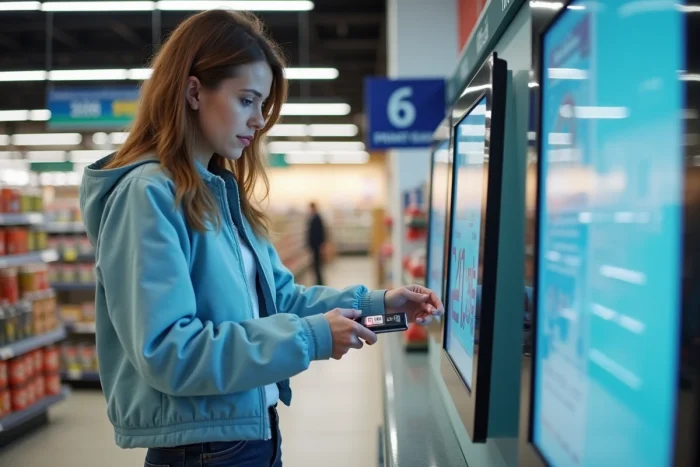
The self-service printing kiosks installed in Carrefour hypermarkets allow you to print documents, ID photos, or copies in black and white and color, without an appointment. The service relies on machines accessible during store opening hours, compatible with various file transfer media.
File formats and transfer media accepted by Carrefour kiosks
Before you go, preparing the file is crucial for successful printing. Kiosks generally accept files in PDF, JPEG, and PNG formats. A Word or LibreOffice document must therefore be converted to PDF from your computer or smartphone before transfer.
To send your file to the kiosk, several options are available depending on the store’s equipment. The most common remains the USB flash drive: you copy your document onto the drive, insert it into the designated port on the kiosk, and then select the file to print on the touchscreen.
Some hypermarkets also offer transfer from a smartphone, either via Bluetooth connection or through a local web interface displayed on the kiosk. This second method saves you from carrying a physical medium, which is convenient for printing a document at Carrefour with Geekosys when you only have a phone on hand.
A often overlooked point: the resolution of the file. For a clear ID photo, aim for a sufficiently high resolution (the maximum quality offered by your phone’s camera is suitable). For a text document, a standard PDF generated from any word processor is sufficient.
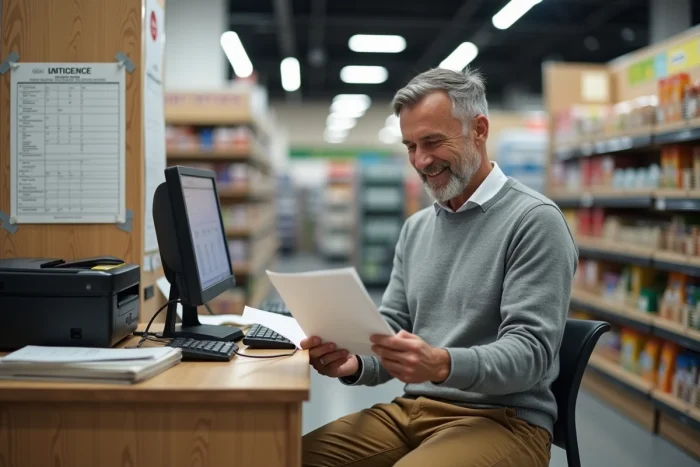
Carrefour printing kiosk: navigating the touchscreen and printing options
The interface of the printing kiosks follows a three-step process displayed on the touchscreen: selecting the file source, choosing print settings, and then payment.
Settings to adjust before starting the print
- Color or black and white: black and white is cheaper and sufficient for an administrative form or a simple CV. Color is necessary for photos and documents with graphics.
- Paper format: most kiosks offer standard A4. Some kiosks also provide photo format (like 10×15 cm) for printing digital snapshots.
- Number of copies: you can select multiple copies of the same document in one operation, which avoids restarting the process.
- Single-sided or double-sided printing: depending on the kiosk model, automatic double-sided printing is available. Check on the screen before confirming.
Once the settings are confirmed, a preview appears. Take a few seconds to check the framing, especially for an ID photo: poor cropping renders the print unusable for an official request.
Payment at the kiosk
Payment is made directly at the kiosk, most often by contactless credit card or coins. Be sure to have some change if your store has an older model that only accepts coins.
Printing linked to the Carrefour Drive account: what it changes
For a few years now, Carrefour has been rolling out connected kiosks in some hypermarkets linked to the Carrefour Drive customer account. The principle is simple: documents stored in your personal space (Drive invoices, order forms) become directly accessible from the kiosk, without a USB flash drive or transfer from the phone.
To take advantage of this, you identify yourself at the kiosk with your Carrefour.fr credentials or by scanning your loyalty card. The kiosk then displays the list of documents available on your account. You select the one to print, adjust the settings, and start the print job.
This functionality is particularly useful for retrieving a forgotten purchase receipt. However, this feature is not yet available in all stores. Before relying on it, check your store’s page on Carrefour.fr, under the “in-store services” section.
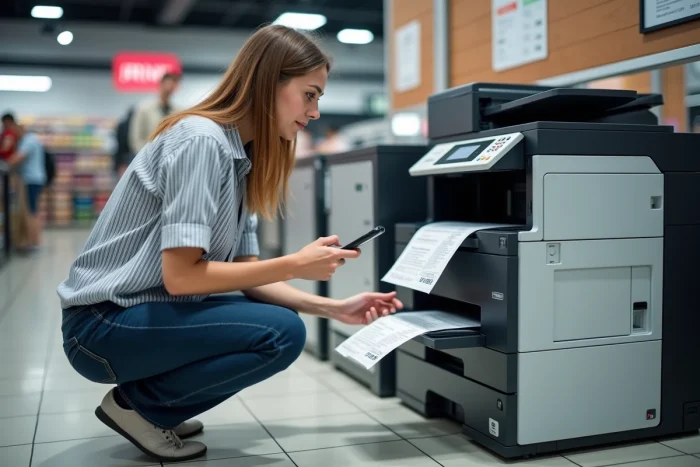
Common mistakes that waste time at the printing kiosk
A corrupted or unrecognized file is the most common issue. It occurs when the document is saved in an unsupported format (for example, an unconverted .docx file) or when the USB flash drive uses a file system incompatible with the kiosk. Format your drive to FAT32 to maximize compatibility.
Another pitfall: sending a file that is too large slows down loading at the kiosk. For a photo, slightly compress the file if its size exceeds what the kiosk can handle smoothly. For a PDF of several dozen pages, split it into multiple parts if only a few pages are of interest.
The print quality also depends on the source file. A PDF generated from a low-resolution screenshot will produce a blurry result. Always prefer direct export from the original application (word processor, accounting software, banking app) rather than a screenshot.
Finally, check that the kiosk has paper and ink before paying. On some models, payment is deducted before printing. If the kiosk runs out of supplies, report the issue to the store’s reception to obtain a refund or a redirection to another available kiosk in the same area.
The in-store printing service at Carrefour remains one of the most accessible solutions for those needing a quick print without owning a printer. The key to saving time lies in preparation: a file in the right format, on a compatible medium, with the correct settings in mind before arriving at the kiosk.